 Letra
LetraOpen applications
Your editor, your browser, your daily essentials. Get straight to the app you need.
Turn everyday Mac tasks into a few keystrokes. Letra finds your scripts, assigns short key sequences, and runs them as fast as you type.
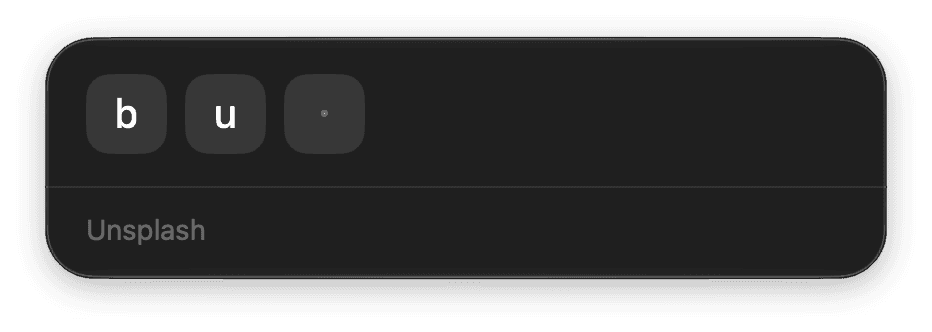
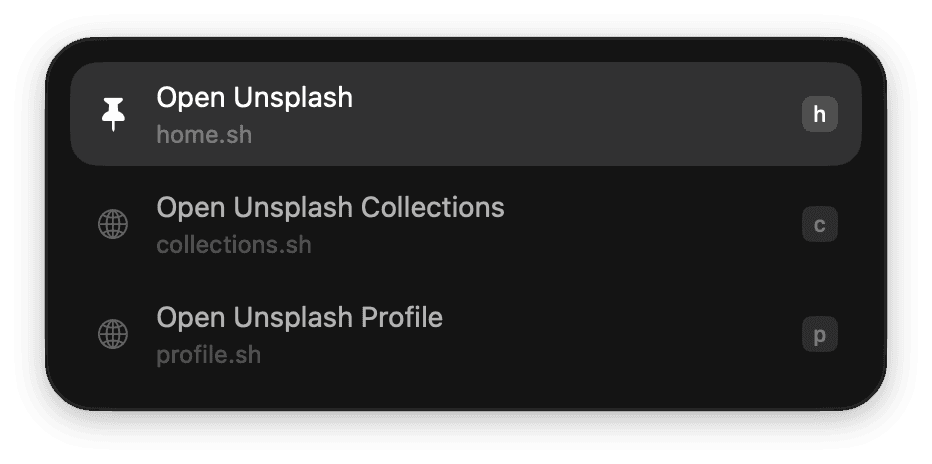
Run your scripts with key sequences.
Shell scripts. AppleScripts. Nothing proprietary. Use the scripts your Mac already understands to automate whatever comes next.
Your editor, your browser, your daily essentials. Get straight to the app you need.
Skip the bookmarks bar. Keep your favorite places on the web a few keys away.
Give your script a search term. Jump straight to the answer, wherever you look for it.
Email addresses, snippets, the text you type too often. On your clipboard in an instant.
Let a script bring back a list. Filter your projects, pick one, and get back to building.
A finished task. A timely reminder. Let your Mac give you a little heads-up.
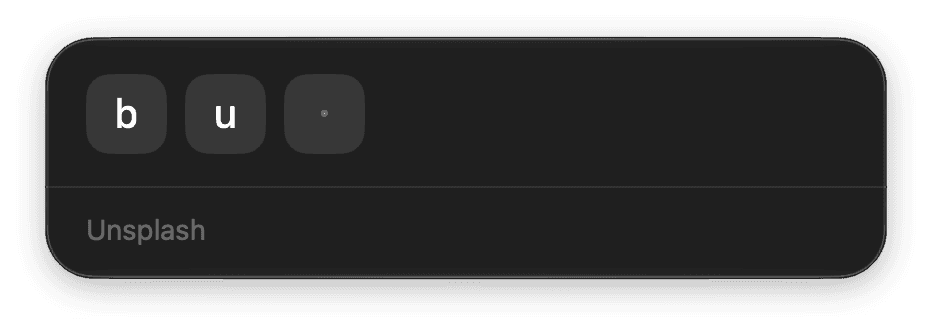
Your folders and filenames become your shortcuts. Open Letra, type the sequence, and your script runs. No reaching for the mouse. No extra Return key.
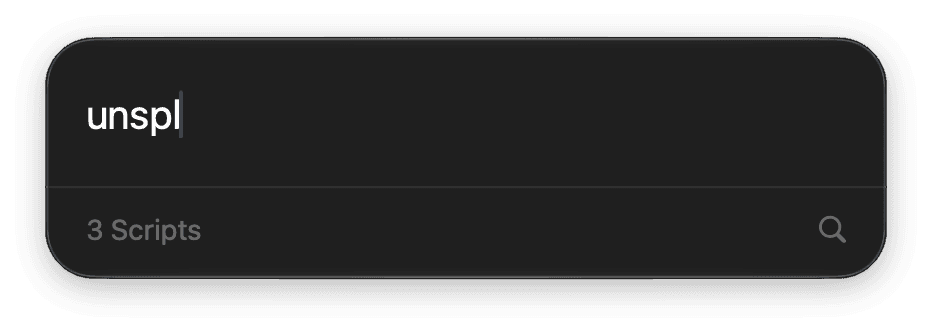
Forgot a sequence? No problem. Search for a script by name, just like any launcher. Perfect for the tasks you run less often.
Letra is a small macOS menu bar app that runs your scripts. Give it a folder of scripts, and it turns their names into short key sequences. Open the launcher, type a few letters, and get on with your day.
Regular Shell scripts (.sh) and AppleScripts (.applescript). There is no proprietary extension format to learn. Optional comments let you add labels, icons, input prompts, and more.
By default, Letra looks in ~/.letra/. You can choose a different folder in Settings and organize scripts in subfolders. After adding or editing a script, press Command–R in Letra to reload the folder.
Letra uses the fewest letters needed to tell folder and script names apart. A script at bookmarks/google.sh can become b g. When names share an initial, Letra adds letters to make them unique. Scripts with conflicting sequences remain searchable.
Press Tab to switch to search, then type part of the script’s name. Use the arrow keys to choose a result and press Return to run it. Press Tab or Escape to go back to key sequences.